


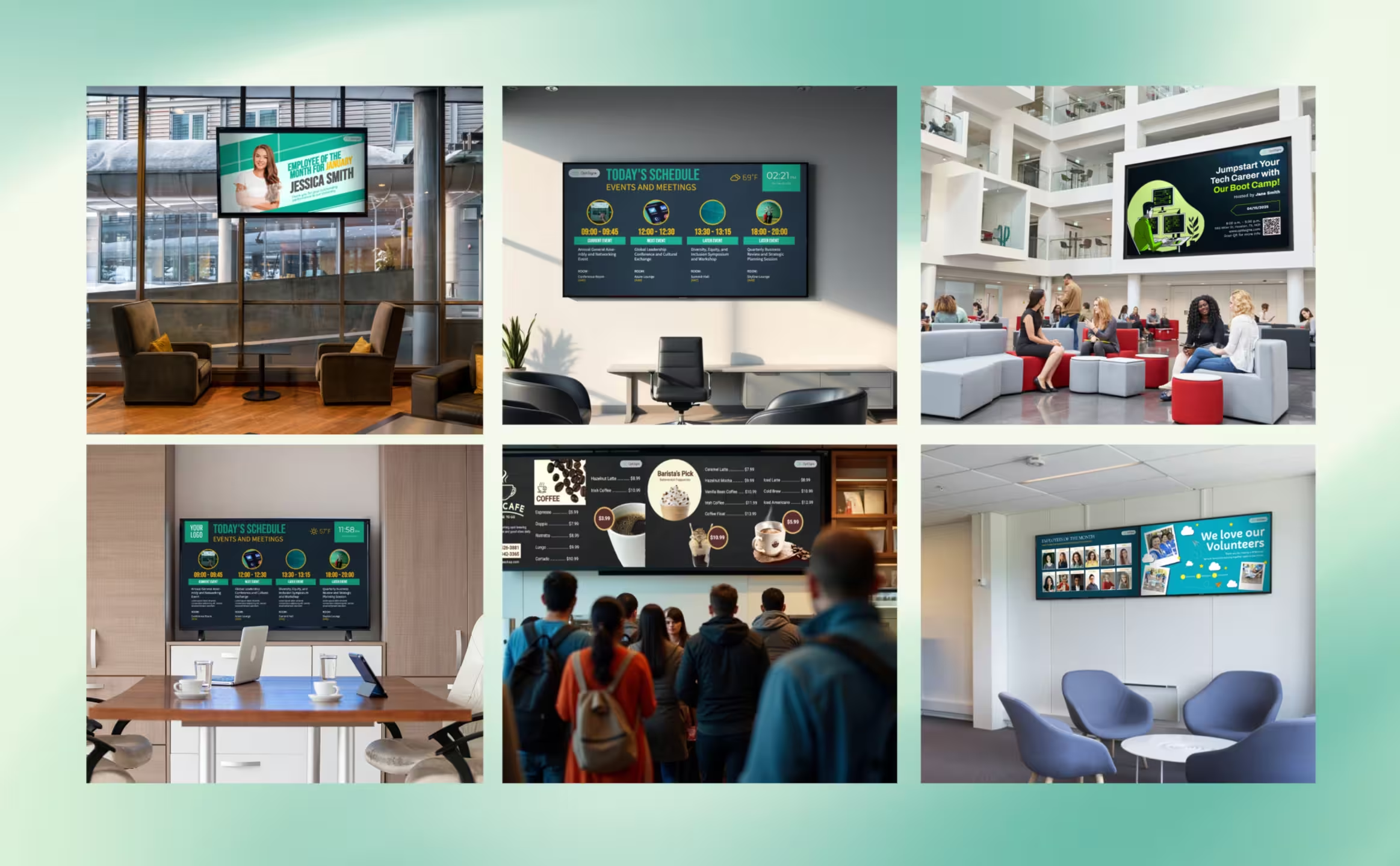
How to Turn Your TV Into Digital Signage
You probably have a TV sitting in your lobby, break room, or storefront right now that's either off or stuck on cable news. That screen could be showing menus, promotions, schedules, or welcome messages to your customers and staff. The good news is that you can turn a TV into digital signage in about 15 minutes, with no technical background required.
This guide walks through everything you need to know. Which TVs work, what hardware you might need, and how to get content on screen using OptiSigns.
Which TVs Work for Digital Signage?
Almost any modern TV can double as a digital sign. If it connects to the internet or has an HDMI port, you're in good shape. Here's a breakdown of compatible platforms.
Smart TVs with a built-in app:
OptiSigns is hardware-agnostic and integratable with many several smart TV platforms. That means no extra hardware at all. Just download the app from your TV's app store and you're ready.
- Samsung Smart TVs for digital signage (Tizen OS, 2016 and newer)
- Roku TV for digital signage
- Android or Google Smart TV
- OptiSigns for Apple TV
- Amazon Fire TV (built-in Fire TV Edition displays work too)
TVs with an HDMI port (using a media player):
If your TV doesn't have a supported smart platform, or if you want more reliability for 24/7 operation, plug in a small media player. The TV just becomes the display. Options include:
- OptiStick ($99.99, fits behind the TV, no mounting needed)
- Raspberry Pi as a digital signage player
- Amazon Fire TV Stick
- Chromecast with Google TV
You can browse all dedicated digital signage players on the OptiSigns hardware page.
Smart TV App vs. Dedicated Media Player: Which Should You Pick?
Both approaches work. The right choice depends on your situation.
Use the smart TV app when:
- You already own a compatible smart TV
- You're running one or two screens
- The content is straightforward (images, videos, simple playlists)
- Budget is tight and you want zero hardware cost
Use a dedicated media player when:
- The TV runs 8+ hours a day, every day
- You need features like video walls or multi-zone layouts
- You want the player to auto-start your digital signage after a power outage
- Reliability matters more than saving $90
Practical tip: for a single screen in a break room or lobby, a smart TV app is perfectly fine. For customer-facing signage that needs to be running every time the doors open, a dedicated player gives you more control and fewer surprises.
How to Turn Your TV Into a Digital Sign: Step by Step
Step 1: Choose Your Hardware
Decide whether you'll use your smart TV's built-in app or add a media player. If you're unsure, start with the smart TV app. You can always add a dedicated player later without changing your content or account.
Step 2: Install the OptiSigns App
On a smart TV: Open your TV's app store (Samsung TV App Store, Roku Channel Store, Google Play, Apple App Store, or Amazon Appstore). Search for "OptiSigns" and install.
On a media player: If you're using an OptiStick, it comes pre-loaded. For Raspberry Pi, follow the setup guide.
Step 3: Create an OptiSigns Account
Go to optisigns.com and sign up. The free plan supports up to 3 screens with 1GB of cloud storage and 25 apps, so you can test everything before committing. Paid plans starting at $10/month per screen unlock unlimited storage, 100+ apps, and scheduling.
Step 4: Pair Your Screen
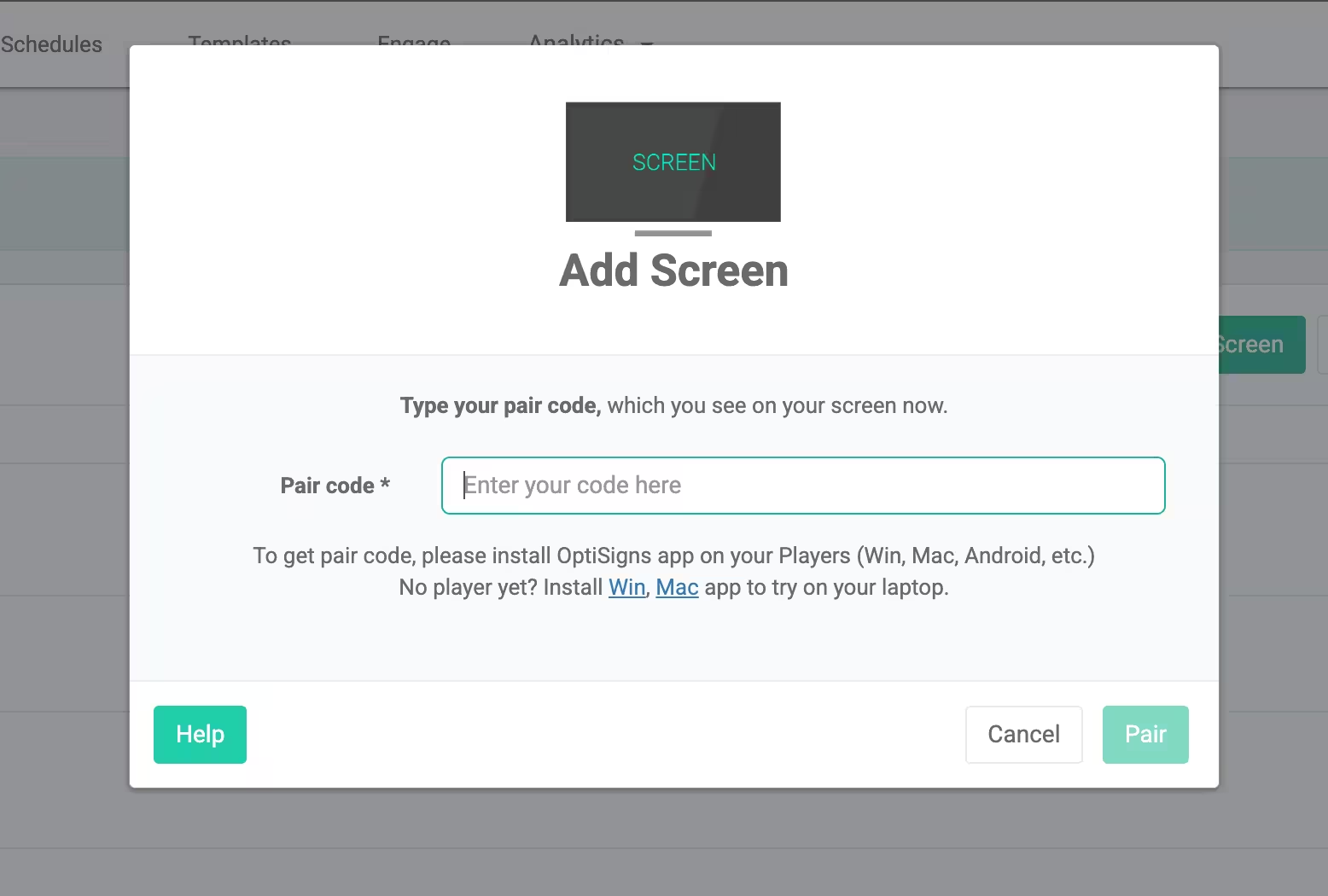
Once the OptiSigns app is running on your TV, it will display a pairing code. Log into your OptiSigns dashboard on any computer or phone, click "Add Screen," and enter the code. That's it. Your TV is now a managed digital sign.
Step 5: Push Content to Your Screen
Upload images, videos, or documents directly. Or build something from scratch using the drag-and-drop designer. Assign content to your screen and it appears within seconds.
You can schedule content in advance, set playlists to rotate, or update screens remotely from anywhere. If you manage multiple locations, every screen is controlled from one dashboard.
What Can You Display?
This is where TV digital signage gets interesting. It's not just static images. OptiSigns supports a wide range of content types:
- Menus and pricing boards. Update prices from your phone. No reprinting.
- Social media feeds. Pull in live content from Instagram, Facebook, or X.
- Dashboards. Show real-time data from Power BI, Google Sheets, or Salesforce (available on Pro Plus and above).
- Videos and animations. Play promotional clips, training videos, or product demos.
- Schedules and calendars. Sync with Google Calendar or Outlook to show meeting room bookings or event schedules.
- Announcements and alerts. Push urgent messages to every screen instantly.
- Weather, news, and time widgets. Fill unused screen space with useful info.
Creating Content (Even If You're Not a Designer)
You don't need Photoshop skills. OptiSigns gives you several ways to build content.
Templates Browse thousands of free templates organized by industry and use case. Pick one, swap in your text and logo, and publish. Templates are already optimized for common screen sizes and aspect ratios.
Drag-and-drop designer Build custom layouts with text, images, videos, shapes, and widgets. Access millions of stock photos and GIFs from GIPHY right inside the editor.
AI Designer Stuck on what to write? The built-in AI writing tool helps you generate and refine messaging without leaving the design interface.
Canva integration. If you already use Canva for your brand assets, connect your account and pull designs directly into OptiSigns.
One tip: use landscape orientation (16:9) for most content. It matches standard TV aspect ratios and looks natural. Portrait mode works too if you're mounting a TV vertically, but you'll need to rotate the display in settings.
Use Cases: Where TV Digital Signage Works
Retail stores. Promote sales, highlight new arrivals, or display social proof near the register. Start with one screen in a high-traffic area and expand from there.
Restaurants and cafes. Digital menu boards let you update pricing and specials instantly. Rotate between breakfast, lunch, and dinner menus on a schedule.
Offices. Show KPI dashboards, welcome visitors by name, or display meeting room schedules outside conference rooms. A break room screen with company news keeps teams connected.
Schools and universities. Post event schedules, emergency alerts, wayfinding maps, and daily announcements across campus buildings.
Churches and nonprofits. Display service schedules, song lyrics, event promotions, and volunteer sign-up info. Many churches start with a single lobby screen.
Healthcare. Waiting room screens reduce perceived wait times. Show check-in instructions, health tips, or queue status updates.
What Does It Cost?
Less than you'd think. If you already own a TV, the only costs are the OptiSigns subscription and optionally a media player.
OptiSigns offers a free plan for up to 3 screens. Paid plans start at $10/month per screen on the Standard tier, which includes unlimited cloud storage, 100+ apps, and email support. Check the full digital signage cost guide for a detailed breakdown.
For hardware, the OptiStick runs $89.99. But if your TV already has a compatible smart platform, you may not need any extra hardware at all.
Getting Started
The fastest path: grab a smart TV for digital signage that you already own, download the OptiSigns app, and sign up for the free plan. You'll have a working digital sign in under 15 minutes.
Once you see how it works with one screen, scaling up is just a matter of adding more displays to your dashboard. Every screen is managed from the same place, whether you have 2 or 200.


